Your Yamaha receiver,
fully controlled from your Mac

Everything in one place

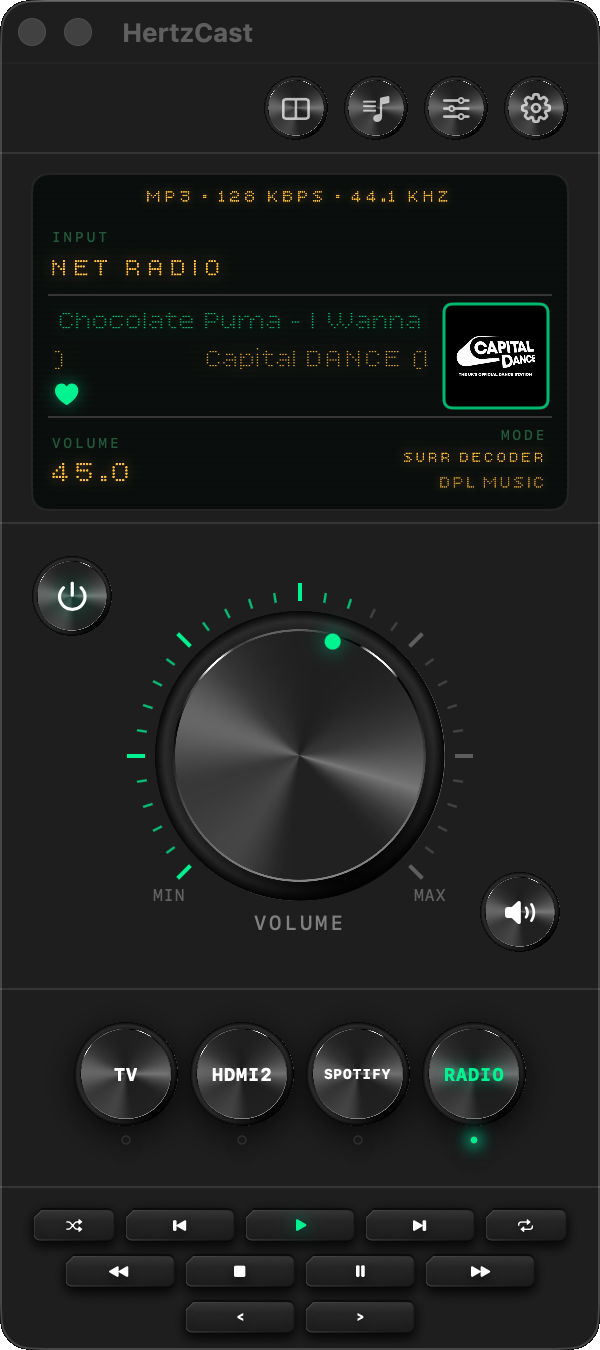
Retro LCD Display

Retro LCD Display

Input, volume in dB, sound mode, album art, scrolling track names.
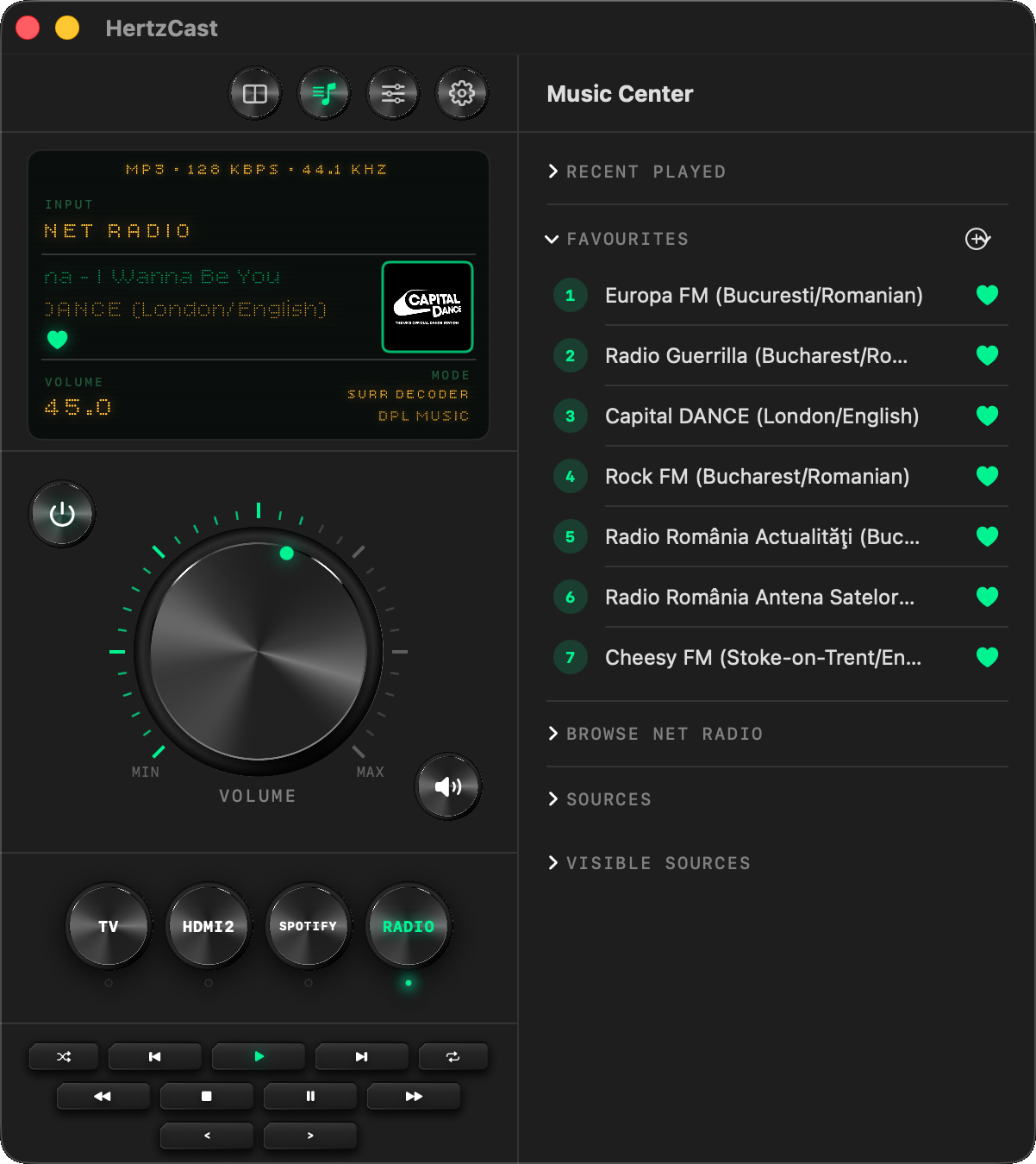
Music Center

Music Center

Browse Net Radio, manage favourites, view recently played stations.
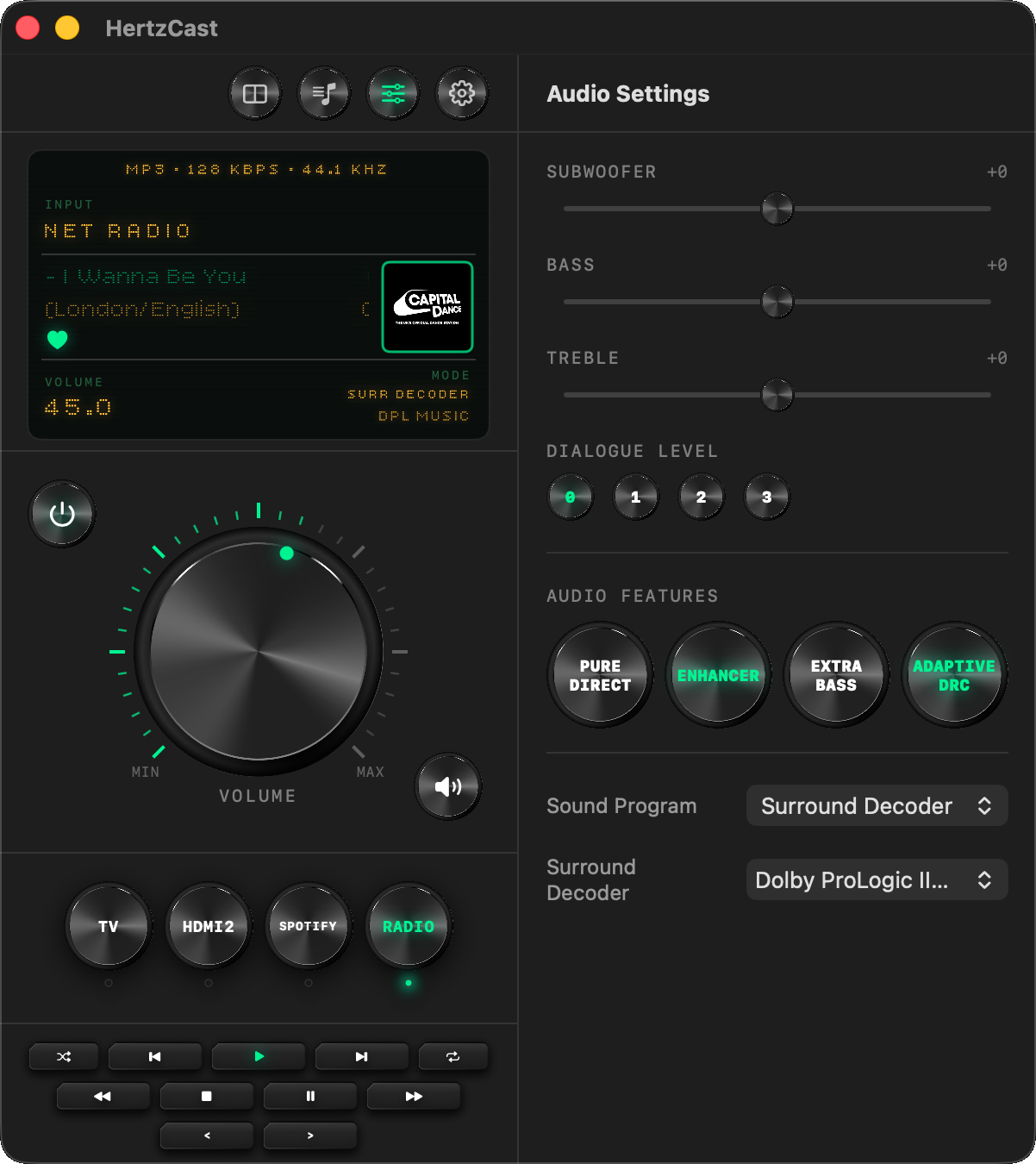
Audio Settings

Audio Settings

Bass, treble, subwoofer, Pure Direct, sound programs and more.
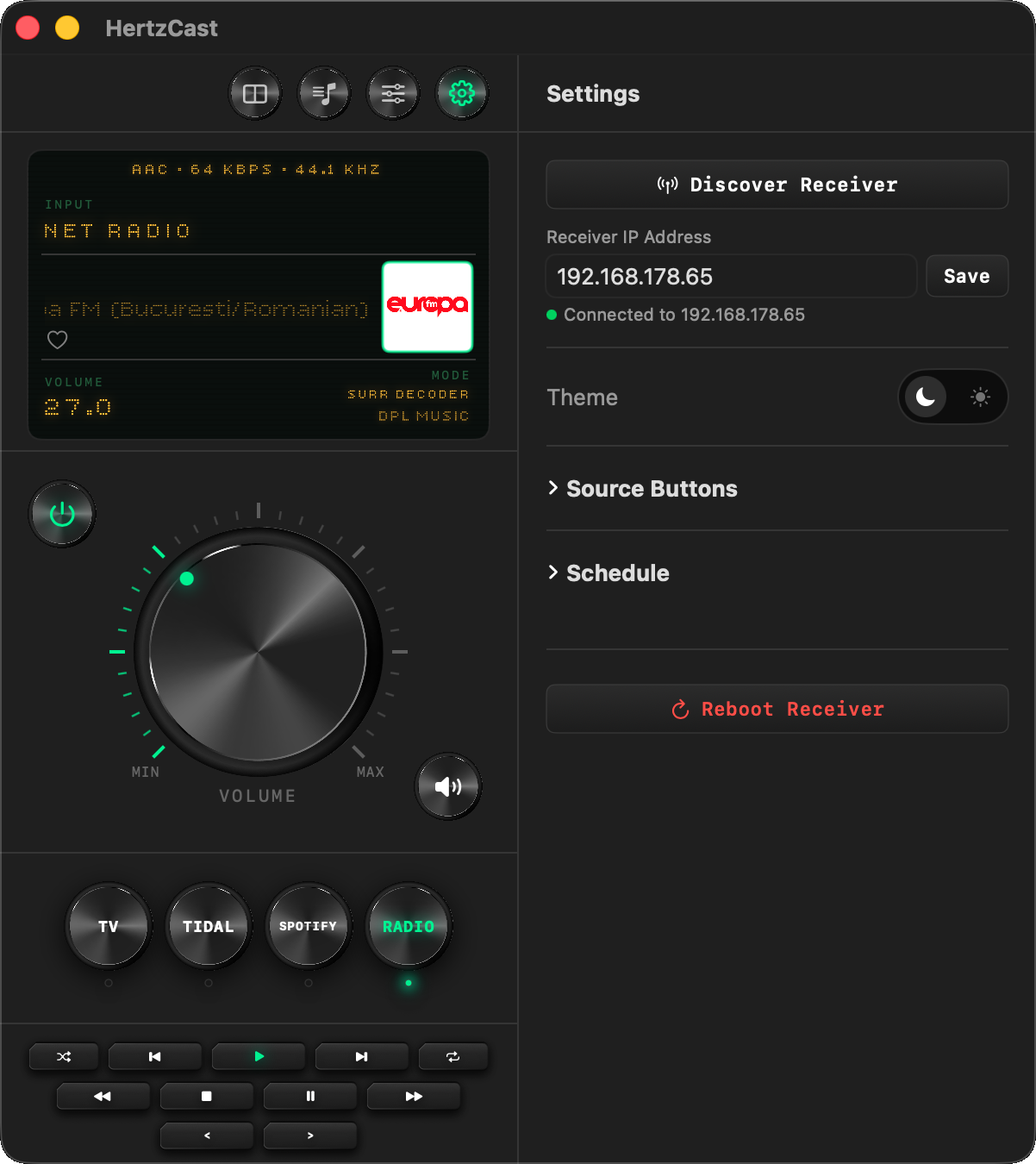
Schedule

Schedule

Morning Alarm and Auto Off — power on or standby on any schedule.
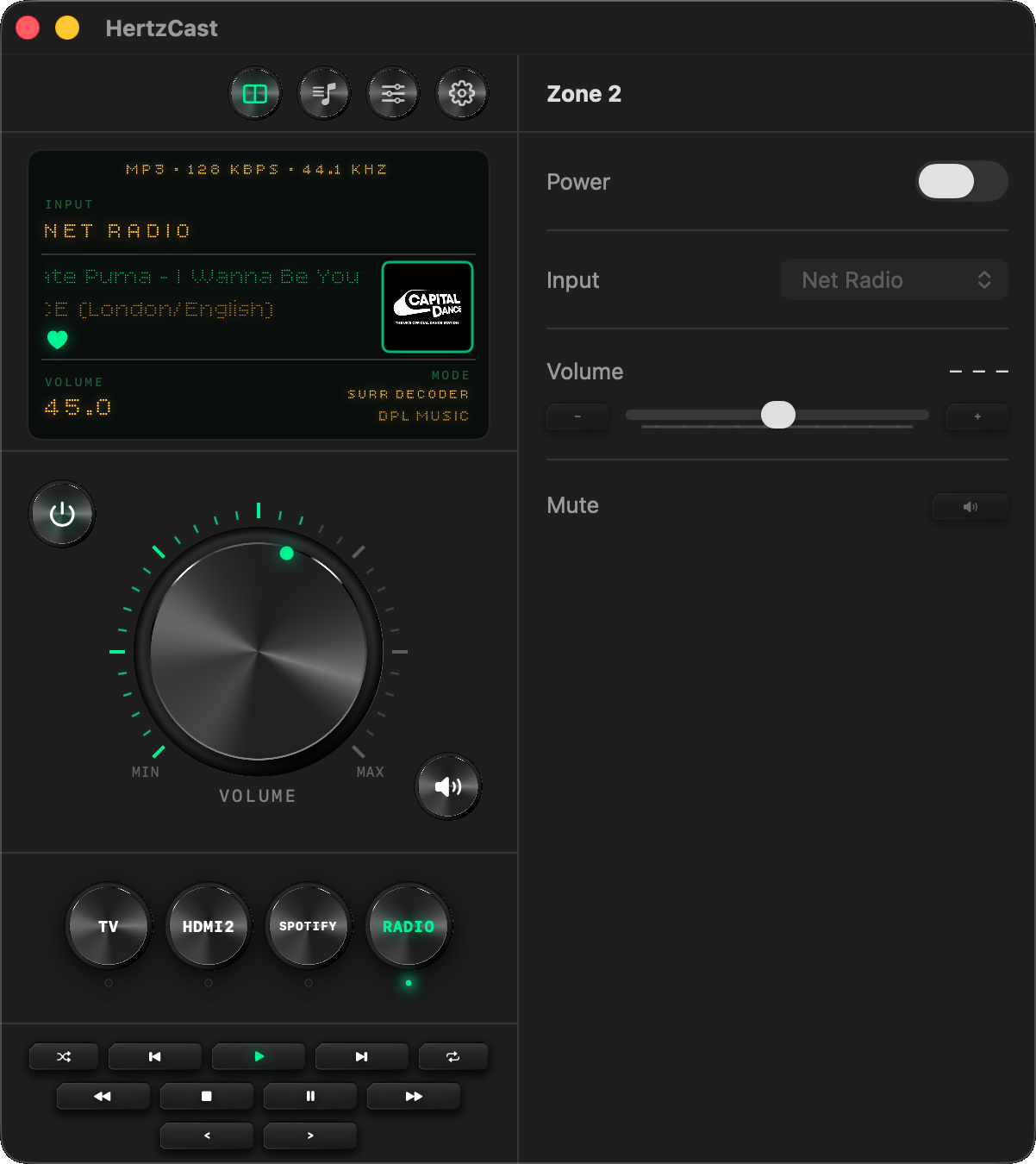
Zone 2

Zone 2

Secondary zone control.

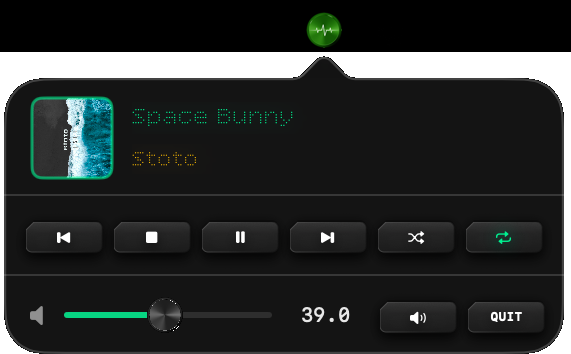
Mini Player

Mini Player

Quick access from mini bar.
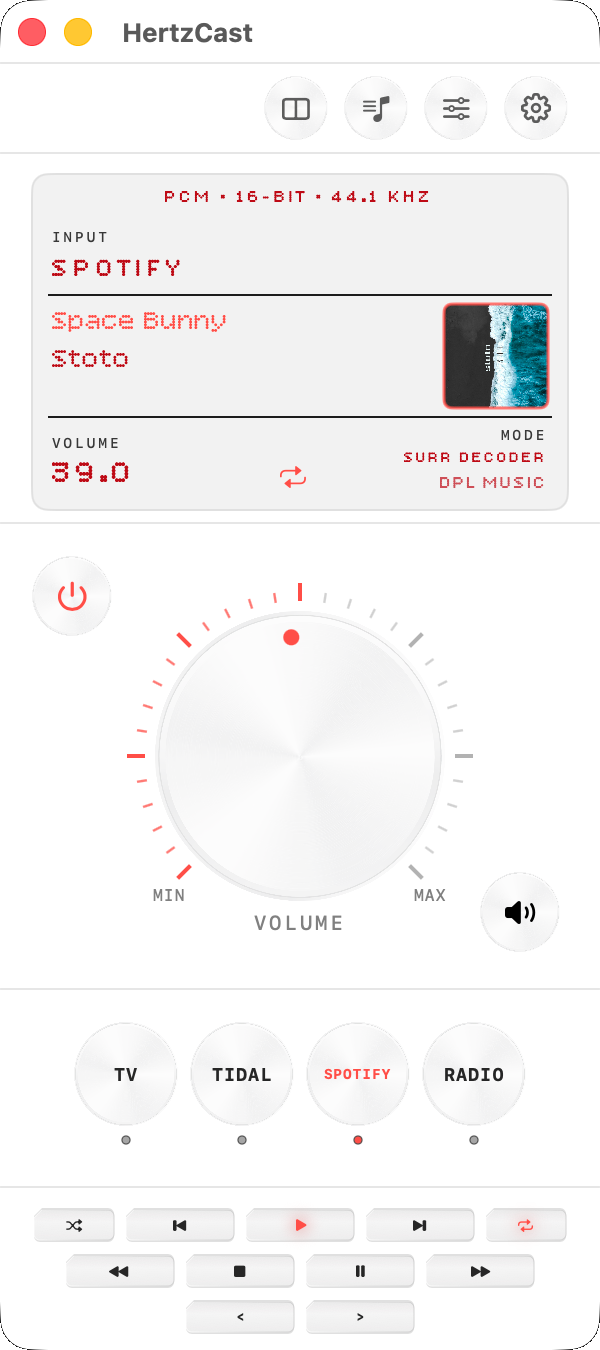
Light Mode

Light Mode

Switch between Dark / Light mode.

Built for your receiver

Every feature maps to something real your Yamaha can do.

📻

LCD Display

Real-time state: input, volume, sound mode, album art, scrolling track names.

Volume Knob

Volume Knob

Circular drag or scroll wheel. Exactly like the real thing.

🎵

Transport Controls

Play, pause, stop, skip, shuffle, repeat. Adapts to the active source.

📡

Net Radio & Favourites

Browse the full directory, save favourites, view recently played.

Scheduling

Morning Alarm, Auto Off, and Sleep Timer — fully automated.

🔊

Zone 2

Independent power, input, volume and mute for a second audio zone.

🎛️

Audio Tuning

Bass, treble, subwoofer, Pure Direct, Enhancer, full sound programs.

Menu Bar Mini Player

Playback and volume from the menu bar — no need to open the app.


Frequently Asked Questions

Setup
HertzCast works with any Yamaha AV receiver that supports the Yamaha Extended Control (YXC) API — typically models from 2015 onwards with network connectivity. If your receiver works with the official Yamaha MusicCast Controller app, it will work with HertzCast.
Open HertzCast, go to Settings, and enter your receiver's local IP address. You can find the IP in your router's device list or in the receiver's own network settings menu.
Make sure your Mac and your receiver are on the same Wi-Fi network.
No. HertzCast communicates exclusively with your receiver over your local network. No internet connection is required, and no data ever leaves your home network.
Connection

A few things to verify:

  • Your Mac and receiver are on the same Wi-Fi network (not guest vs. main)
  • The IP address in Settings matches your receiver's current IP
  • Your receiver is powered on and fully booted
  • No firewall or router rule is blocking local HTTP traffic on port 80
IP addresses on home networks can change when a device reconnects. Consider assigning a static IP to your receiver in your router settings.
HertzCast displays exactly what your receiver reports. If track info or album art is missing, it means your receiver isn't providing it for the current input or source. This is normal for some inputs (e.g. FM Tuner, Bluetooth) that don't transmit metadata.
Features
Yes. Use Spotify Connect on your phone or computer to cast audio to your receiver, then switch HertzCast to the Spotify input. Transport controls (play, pause, skip) work from HertzCast once Spotify is active.
Go to the Schedule tab, enable Morning Alarm, pick a time and days of the week, and select which input to power on to. HertzCast will turn on your receiver automatically at that time — even if the app isn't open.
Zone 2 is a secondary audio output available on some Yamaha receivers, typically used to send audio to a different room. HertzCast lets you control Zone 2 power, input, volume, and mute independently from the main zone.
Not in the current version. HertzCast is designed for a single receiver. You can change the IP address in Settings at any time to switch between receivers manually.
Other
Reach out at Email support or open an issue on GitHub.